DATA Free Intraday Stock Data
Overview offerings: https://rapidapi.com/blog/google-finance-api-alternatives/
For Google Finance API this spreadsheet downloads realtime intraday backfill from Google.
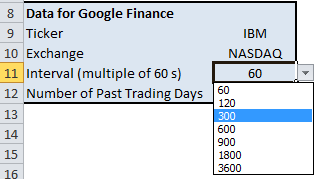
You can choose the interval, the number of trading days, the ticker symbol and the exchange. The VBA is open, and not password protected – you can view, edit and learn from the code.
Many websites offers end-of-day historical quotes – this can often be downloaded into a spreadsheet via a programmable web API. The Bulk Stock Quote Downloader, for example, retrieves stock quotes from Yahoo Finance.
Intraday historical stock data is harder to find; you usually have to pay to find accurate data with no omissions. However, Google Finance offers an API that lets you download intraday backfill data in a CSV file.

This Excel spreadsheet employs this API to download intraday stock quotes for the past fifteen days. Just enter
- a ticker and the exchange
- number of past trading days (from 1 to 15)
- and the time interval (you can choose between 1 min, 2 min, 5 min, 10 min, 15 min, 30 min or 1 hour from a drop-down menu)

After you click a button, the spreadsheet connects to Google Finance, and imports the historic intraday data. You get the Time, Open, Low, High, Close and Volume Traded.

Column A contains encoded date and time data; You see a time zone offset, time stamp (which is repeated if the backfill crosses more than one day) and a number.
- The time stamp is of the form a1404826200 (the numbers after the “a” differ). This is a Unix time stamp
- The time zone offset is a constant offset from the time stamp
- The numbers below the time stamp (in column A) are integer multiples of the backfill interval
Converting this data to a meaningful date and time takes a few steps.
- In Unix time, the start of every trading day is timeStamp + timeZoneOffset * 60
- In Unix time, every subsequent time interval is timeStamp + timeZoneOffset * 60 + backfill interval * integer multiple
You then convert to an Excel time stamp by
- transforming to an Excel time stamp with this equation: (Unix time) / 86400 + 25569
- formatting the Excel time stamp to a date and time (e.g. by changing the number format to NumberFormat = “d mmm yyyy h:mm;@”)
These steps are automated by the VBA in the spreadsheet. The VBA can be viewed and edited.
Download Excel Spreadsheet to Get Free Intraday Data from Google
