Vicinity Graph
In summary, Vicinity Graph transforms Obsidian's native local graph into a dynamic, folder-grouped visualization that emphasizes context and structure.
Headlines
- Vicinity Graph enhances note visualization. It provides informative nodes with titles and thumbnails, moving beyond identical dots.
- Interactive and customizable interface. Users can resize nodes, set link depth, and pin notes globally or per context.
- Folder-based organization. The graph nests notes in labeled folder boxes, reflecting the actual file structure visually.
- Comprehensive settings and controls. Adjustable depth, grouping, and node contents offer users full control over their viewing experience.
- Integrates with folder notes effortlessly. Recognizes folder note conventions without additional setup, reinforcing hierarchical structure.
Things
- People: Nickolay Kondratyev
- Places: GitHub, Obsidian Plugin Store
- Numbers: 0.1.22 (version), 91 (downloads), 1 hour ago (last updated)
- Things & Concepts: Vicinity Graph, local graph, nodes, connectors, pinning, folder-grouping, Obsidian 1.12.4+, KSAL-2.3 License
Nickolay Kondratyev 91 downloads
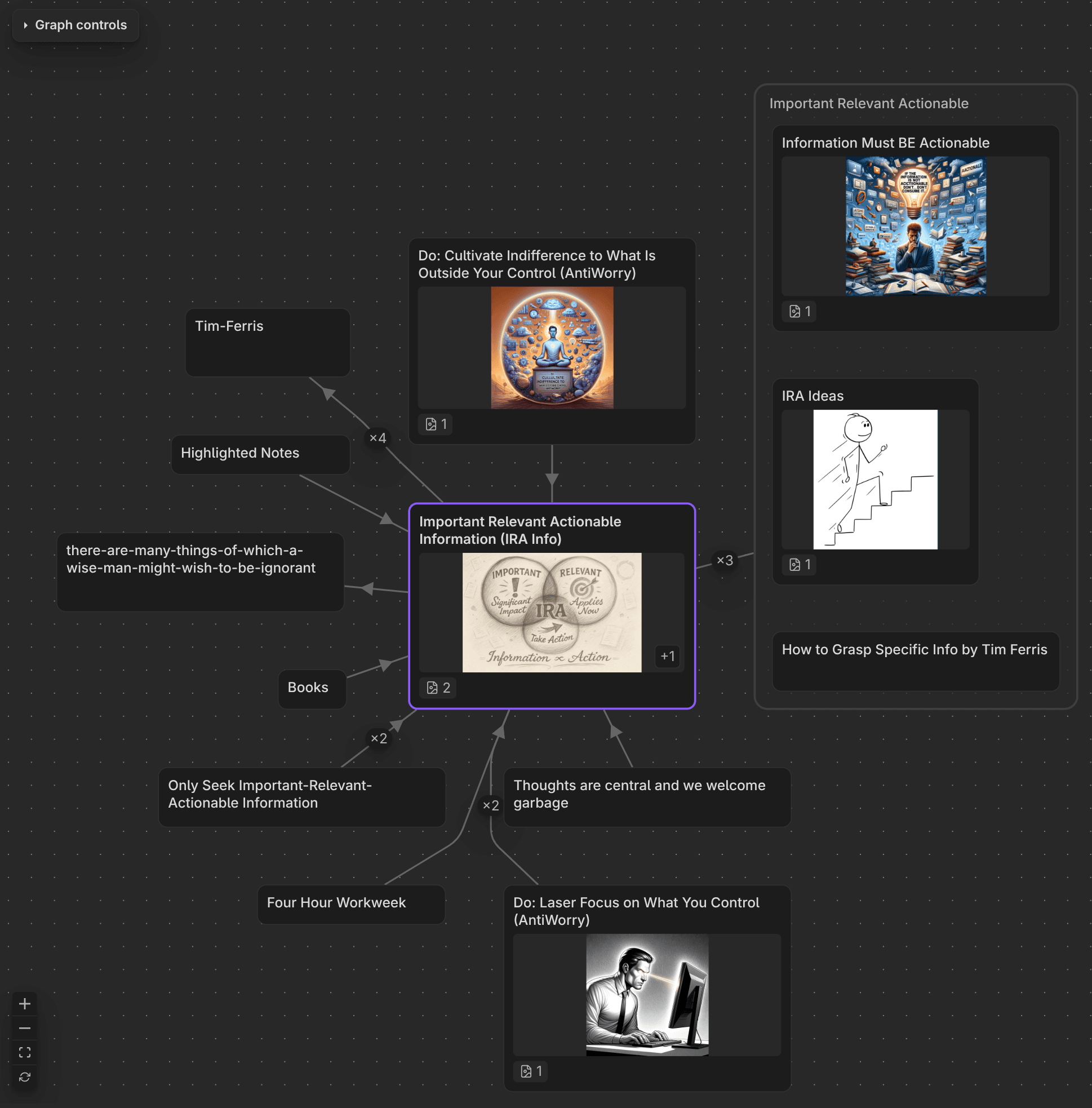
A richer local graph of the notes near your active note — a folder-grouped alternative to the built-in local graph.
A richer replacement for Obsidian's native local graph. Instead of identical dots, Vicinity Graph shows the neighbourhood of your active note as informative, folder-grouped nodes — each one telling you what the note is before you open it.
Why you'd want it
The native local graph makes every note look the same and shows no structure between them. Vicinity Graph fixes both:
- Nodes that actually tell you something. Each node carries its title, a first-image thumbnail, an icon strip for its attachments, its folder, and a size that reflects relevance.
- Folders you can see — nested. Notes that share a folder render inside a labelled group box, and sub-folders draw as boxes within their parent's box, so folder membership (at every level) is part of the picture. A note whose own folder is too small to draw falls into the nearest folder that is.
- Connectors that stay out of the way. Links are drawn as calm, right-angled connectors that route around your notes instead of cutting across them, so a busy graph stays readable — and every connector is clickable (see below).
- Depth you control per relationship. Outgoing links, embedded notes and incoming links each get their own reach, adjustable right in the view.
- Pinning — globally or per note. Hold one or more neighbourhoods on screen while you browse elsewhere.
The view opens in the right sidebar by default (matching native local-graph muscle memory) and can be dragged into the main area.
Install
Vicinity Graph is in the Obsidian community plugin store. Requires Obsidian 1.12.4 or newer.
Community plugins (recommended)
- Settings → Community plugins, and turn on community plugins.
- Browse, search for Vicinity Graph, Install, then Enable.
- Run the Vicinity Graph: Open in right sidebar command.
Where the graph opens
Two commands, both bindable to a hotkey:
| Command | Places the graph |
|---|---|
| Vicinity Graph: Open in right sidebar | docked in the right sidebar |
| Vicinity Graph: Open below active note | in a main-area pane below the current tab |
There is only ever one graph view: running either command moves the graph there; running the command for where it already is just focuses it.
Interacting with the graph
- Click a node — it becomes the graph's central note, and its markdown opens in the current tab. Ctrl/Cmd-click opens the note in a new tab.
- Click a connector — opens a preview of that relationship: every place the source note links the target, each expandable to its surrounding context with a GO button that jumps the editor to that exact line.
- Drag a node's right/bottom edge or corner to resize it; the handles appear on hover. The new size is remembered for that note in every graph.
- Right-click a node — pin / unpin, plus Reset size on a note you resized.
- Folder-group boxes are containers, not notes — clicking one does nothing.
Pinning
Pinning holds a note's neighbourhood on screen as an extra central node. There are two kinds, each with its own control (revealed on hover, top-right, and in the right-click menu):
- Global pin — pins the note into every graph, whatever your active note is. Use it to keep a hub or a note you're working from always in view.
- Per-note (local) pin — pins the note only while a particular note is active (Pin for this note). Switch away and it disappears; switch back and it returns. The target shows even if the active note has no link to it. A note can carry both kinds at once.
Both kinds survive restarts and are keyed to a stable note id, so renaming or moving a pinned note keeps it pinned. Pinned centrals traverse with their own depth budget (the Pinned … dials), separate from the active note's.
Just after an Obsidian restart, a pinned central can briefly render as a plain node until the background cleanup sweep runs (~15s). The pin is not lost — only its accent lags.
Folder-note hierarchy
If you keep folder notes (the Folder Notes community-plugin convention), Vicinity Graph draws that structure too — no setting to turn on. A folder note is recognised either way it's commonly written:
- Beside the folder —
Jon.mdsitting next to a folderJon/. - Inside the folder —
Jon/Jon.md.
Either way, that note is the folder note of Jon/, and the notes inside Jon/ are its descendants; walking the other way, the folder note of the folder that contains your note (and its folder note, and so on) are its ancestors. The Descendants and Ancestors depth dials say how many folder levels to follow — set either to 0 to switch it off. Deeper hops only continue through sub-folders that have their own folder note.
A pure hierarchy relationship is drawn as a dashed connector (no count badge), pointing from the folder note to the child. When the folder note also links its child, the two collapse into the usual solid, badged link connector — click it and the preview names both the link and the folder relationship. (When both Jon.md and Jon/Jon.md exist, the inside one wins and the sibling Jon.md is treated as an ordinary note.)
Settings
Every setting is global — one value used by every note and every open graph. The only things remembered per note are the facts you set on it directly: which notes are pinned and which you've resized.
Two surfaces edit the same values and stay in sync: the settings tab (Settings → Vicinity Graph) and the in-view Graph controls panel. Controls answer immediately — move a slider, toggle or field and the graph redraws behind it.
The settings, grouped the same way on both surfaces:
- Depth — how far traversal reaches from each central note, with a separate budget for outgoing links, embedded notes, incoming links, descendants and ancestors (the last two are folder-note hierarchy — see below) — and a second set of budgets for pinned notes. A depth of 0 turns that relationship off; descendants and ancestors ship at 1 for the active note and 0 for pinned notes.
- Grouping — Folder grouping depth sets how many levels of nested folder groups render: 0 turns grouping off entirely, and the slider runs
1–10and then ∞ (unlimited, the default). Full folder path labels a collapsed folder chain (a run of single-child folders drawn as one group) with its full path (A/B/C) instead of just the innermost folder name (off by default; groups that are not collapsed always show their folder name). - Node sizing — each node fits what it shows between a minimum and maximum height, with an optional extra floor for image nodes. A size you set by dragging always wins.
- Node contents — a Preview pill choosing what a node shows: Auto (outline for your roots, first image for neighbours), Title only, Outline or Image, plus an Outline depth for how many heading levels an outline shows. Clicking an outline entry opens the note at that heading.
- Edges — Show cross links also draws links between two on-screen notes that traversal never walked (which notes are shown never changes, only the lines between them). Edge depth into groups sets how many nested-group levels an edge may reach into before collapsing onto the group box (0 keeps every group edge collapsed).
- Force layout — sliders named like Obsidian's native graph (center, repel, link force, link distance) plus spacing and edge-clearance controls, each with a Restore defaults button.
- Node exclusion — keep whole classes of notes (index/MOC hubs, templates, a
rel/folder) out of every graph via a regex pattern list. Your central and pinned notes always stay. - Frontmatter links — Id-reference fields names the frontmatter fields (e.g.
deps) whose values are read as references to another note's frontmatterid, and drawn as ordinary link edges — in both directions, so the referenced note also shows who points at it. Type a field name and press Enter to add it; each added field shows as a chip with its own × to remove it. Empty by default (the feature is off); it rides the same depth budgets as[[wikilinks]]. - Performance — a node cap (default 100, the readable ceiling); beyond it the graph truncates and shows a hidden-node count.
Typed fields (sizing numbers, node cap, patterns) apply once you pause typing or leave the field, not per keystroke. Every section has its own Restore defaults row, and Restore all Vicinity Graph settings at the bottom resets everything — your pinned notes are never touched by any of them.
Scope & limits
- Local graph only — no global graph, and no unresolved (ghost) links.
- Layout is computed — node positions aren't manually draggable-to-persist (dragging resizes; it doesn't move).
- Outline entries jump to the first heading with that text, so duplicate headings are ambiguous.
*.excalidraw.mdand canvas files show no outline. - Heading labels strip common inline markdown but aren't a full renderer; the raw heading text is always what opens the note.
Third-party notice
The right-angled connectors are routed by libavoid-js, a WebAssembly build of the libavoid connector-routing library, licensed LGPL-2.1-or-later. It runs entirely offline (no network, no disk) and only ever receives on-screen node rectangles — never your note contents, paths, or metadata.
Development
Building, testing, and cutting releases are covered in docs-internal/development.md.
License
Vicinity Graph is source-available under the Kondratyev Source Available License, Version 2.3 (KSAL-2.3) — not an OSI open-source license. See LICENSE.md, which is the authoritative and controlling text.
[
HealthExcellent
ReviewRisks
](#scorecard)
About
Render the vicinity of the active note as a grouped, informative canvas like graph that replaces the native local graph. Show rich nodes with title, thumbnail, image, and outline; group notes by folder into labeled boxes, control per-channel link depth, and pin central notes while you browse.
Details
Current version
0.1.22
Last updated
1 hour ago
Created
4 weeks ago
Updates
14 releases
Downloads
91
Compatible with
Obsidian 1.12.4+
Platforms
Desktop only
License
OTHER
Sponsor
